
I've been using the Simulator to install my game code on my two phones (ZTE Open and Geeksphone Peak) and it has never let me down. I knew there was a better solution from Firefox OS called App Manager, but it required that my phones have Firefox OS 1.2 or greater. And, having heard horror stories of phones being bricked, I wasn't eager to try to flash my phones. I use the Peak every day for programming so I didn't want to risk losing it, and there have been some problems with the ZTE Open.
But now this message worried me. I tried the Simulator and ... it didn't work! The latest "normal" Firefox is 26 and I'm usually working with Nightly, so I was in trouble. Well, maybe flashing my Peak won't be that hard. Well, it was hard, but I'm now the proud owner of a Firefox OS version 1.2 Geeksphone Peak.

More about the installation later, but the first thing I did once I had a working phone was to try out the App Manager. It is really worth the trouble, because it does lots more than the old Firefox OS Simulator (which helped me do about 35 posts). The features that stand out to me:
1. You can see a little more progress when the app is loading onto the phone. In the lower right corner, there is a nice little window that tells you you're connected and the status of your loading.
2. You can actually debug apps running on the phone with your PC. Here's an example of some console action, courtesy of the App Manager:

3. You can take screenshots by clicking on a button in the App Manager. You can even run apps on your phone and do the screenshots from your PC! Taking screenshots is a pain. Here is a screenshot from the App Manager:

Here is a screenshot from the actual phone (Power Button + Home Button):

You can read all about the App Manager here: https://developer.mozilla.org/en-US/Firefox_OS/Using_the_App_Manager. App Manager isn't a plug-in, but comes with any Firefox browser that is version 26 or higher. When you first run it (from the Developer Menu), it will ask you to install a 1.2 or 1.3 simulator and some ADB software from our friends at Google Android (ADB = Android Device Bridge).
So I'm busy at work and you might be guessing that my next post will be about a cute little fox who escaped from a Pac Man game written in another dimension. Later!
What Went Wrong?
Mozilla provides this great article on how to upgrade a Geeksphone: https://developer.mozilla.org/en-US/Firefox_OS/Developer_phone_guide/Updating_and_Tweaking_Geeksphone. Great except for one tiny thing that threw me off for an hour or two. I'll get to that, but first I'll outline the steps.1. Make sure your phone and PC are ready. They recommend this article: https://hacks.mozilla.org/2013/05/pushing-firefox-os-apps-to-the-geeksphone/. Essentially you must have your drivers in order (especially if you have a Windows PC, which is what I used, and I expect a few others do also). Drivers in Windows are always "interesting" and especially anything to do with USB drivers is always a problem. The actual USB architecture is pretty lame, and tries to squeeze too much, too fast, through a thin pipe. But Device Manager is your friend (or perhaps the Girlfriend from Hell) and you can get it to work. I'm on Windows 7 and my PC is a four-year-old Asus laptop. Essentially for my setup, everything works if Device Manager shows me this:

2. Get the proper image of the new OS you want to flash to your phone. Geeksphone is very good about this (and ZTE Open not so good). They offer stable (1.2) and unstable (1.3) and nightly, and I picked 1.2 because that's all I need right now, to make App Manager sing.
Get it here: http://downloads.geeksphone.com/.
3. Make sure Remote Debugging is set up on your phone. I already did this (but checked) because you need this for the Firefox OS Simulator. It's in the Developer section of your phone.
4. Unzip the image you got in step 2 and put it somewhere on your PC so you can find it later. I stuck mine in the root of the D: drive.
5. Open up a Command Prompt window (also fondly known as the DOS Box, but DOS is only emulated these days). Navigate to your image folder. Tip: the folder name is really long, so you can just type the first few letters, insert an asterisk, and press Enter. Then, type:
flash.bat
Things will happen. Stuff is copied to your phone. And then ....
6. Something went wrong. I got stuck on an orange screen I'd never seen before. Turns out this is the Recovery Screen and very useful, but no combination of buttons did anything except get me back to this screen, and no phone in sight. An endlessly looping ... BRICK!
What I needed to be at was a different part of the phone innards called the FASTBOOT screen, black with a few options. But how to get there?
The instructions said:
I've read enough to know my ZTE may not have Fastboot, but I'll worry about that later. Peak has it but getting it is ... not exactly what they said. After removing the battery and putting it back in, no amout of pressing the Volume Down and Power did anything except keep bringing me back to the dreaded orange Recovery Screen.If you are in the process of modifying your phone and it becomes “unresponsive” you should be able to recover it using fastboot with a simple procedure. The following illustrates resetting the Keon but other phones should have a similar process. You will also need to verify that you have fastboot installed.First remove the USB cable and then remove the battery from the phone for 30 seconds. Then reinsert the battery and press the volume down button while holding the power button for a few seconds. Next reconnect the USB cable and run the following commands from a terminal window in the directory that contains the latest img files described in the first section of this post:fastboot flash recovery recovery.img fastboot flash boot boot.img fastboot flash userdata userdata.img fastboot flash system system.img fastboot rebootThis process should recover your phone. If it doesn't seem to work, you may have to try it a second time.
I surfed the web and wore out my fingers on those hard buttons, and finally found one post somewhere that said to press Power AND the both the Volume Up and Volume Down buttons. Something is fiddly with those buttons, but pressing all three worked the first time and I was now in the Fastboot screen on my phone and was able to type the above commands in the command window. A few short moments later my phone rebooted and I was at version 1.2.
As a retired engineer I can appreciate that the Peak only has 4 buttons, and that two of them are attached at the hip. I've seen other phones that required some serious finger and hand stretching to get them to reboot the right way, but I would have preferred a pinhole in the back. For the Peak, I've seen the following ways to get to the magic Fastboot screen:
1. Power + Volume Down
2. Power + Volume Up
3. Power + Volume Up + Volume Down
And sometimes the order is important. #3 worked on the first try, #1 and #2 never worked for me. Just do this:
1. Take the battery out.
2. Unplug the USB cable (essentially if you don't, the phone is still powered)
3. Wait 30 seconds.
4. Put the battery back in.
5. Press Power + Volume Up + Volume Down (all at once).
6. Plug in the USB cable.
7. Type these commands, one at a time, and let them do their thing:
fastboot flash recovery recovery.img8. The phone will now reboot after the usual questions (time zone, etc.) you're done!
fastboot flash boot boot.img
fastboot flash userdata userdata.img
fastboot flash system system.img
fastboot reboot
I couldn't take a screenshot of the Fastboot or Recovery screens, but I found some similar ones that will give you an idea of what they look like.
Recovery Screen
Here is an image I found somewhere in G-land:
That one's for the ZTE but the Peak recovery screen is orange and has a few more options.
Flashboot Screen
Here is one for an Android device. But don't forget, under the skin, we're all androids!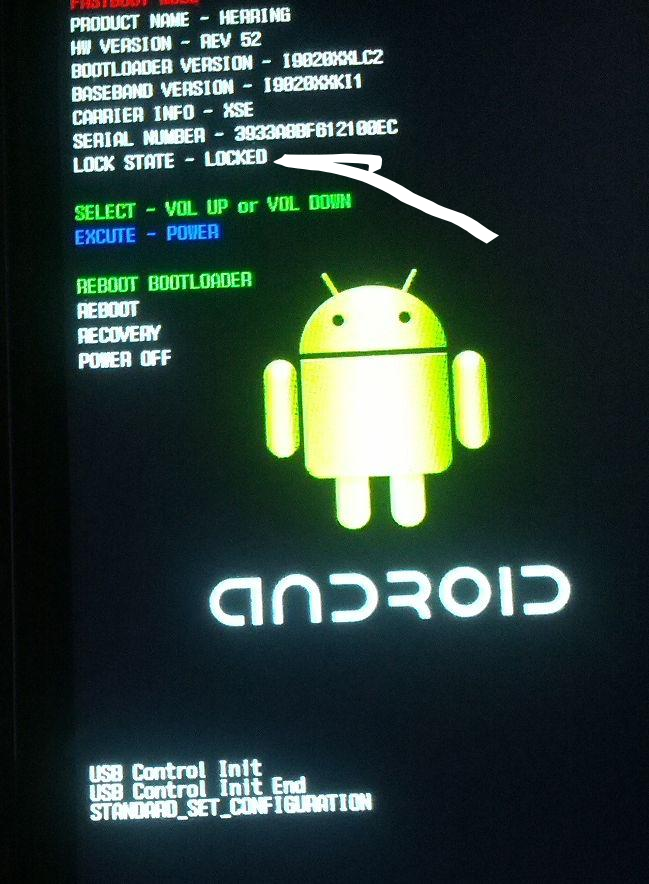
Of course, mine didn't have a cute little Android or some of the extra device information, but it did have some similar stuff. The point is that you don't want to pick options from this screen, you just want to be on this screen with your phone. Once your phone displays this screen, you can run those mysterious fastboot commands from the command prompt on your PC. The instructions on how to do all this from a Mac or Linux are around, but in keeping with my lazy ways, I went with what was close at hand. I have now put Fedora on two spare netbooks and I'll try building my own images at some point. But for now, my Peak works and I'm back to game programming.
Next up, a series of posts on creating your own version of Flappy Bird, maybe some ASCII art games, a text adventure, a cool RPG, some platformers, oh, and maybe I'll pull these posts together and make a book!


