Showing posts with label Geeksphone Peak. Show all posts

Tuesday, April 15, 2014

Responsive Design (Game Programming)

One of the many reasons I like to write about game programming as well as other people's games is that often a game I review inspires me to dig deeper into game programming issues for Firefox OS. In my last post, when I reviewed Drag the Dots, http://firefoxosgaming.blogspot.com/2014/04/drag-dots-game-review.html, I noticed that one of the games overlapped the buttons at the top.


Above is a screenshot on the ZTE Open. Because the game developer had made the quit button and the time display panel semi-transparent, you could still play the game just fine, but it is a small annoyance.

Further annoying is the little-known Software Home button. See that little Mozilla fox at the bottom. That is only displayed if it is enabled in the Developer section of the settings. If you don't see it, you can enable it by going to developer settings and check "Enable Software Home button". It does the same thing that the hardware Home button does just below it. I didn't even know it was possible until I upgraded my software to version 1.2 and all of a sudden the fox was there but I didn't even notice it!

I'm sure there's a reason of the Software Home button, but it takes away precious screen area. I'm curious if there is some way in my game I can make sure this is not enabled. I'll poke around and see! But maybe it is important to have it. Anyone know?

This prompted me to go back and look at my post called How Big Am I?, http://firefoxosgaming.blogspot.com/2013/10/how-big-am-i-game-programming.html. I'm looking forward to the Firefox OS tablet, which has made me want to think about sizes and how much space you have for a game. I decided to rewrite my little program and have it display the inner and outer height and width. One thing led to another and I decided to add some new features to my CSS Shell code, http://firefoxosgaming.blogspot.com/2014/03/son-of-css-shell-game-programming.html.

Instead of using an alert, I display the values in the page itself. And here's what I have found for the ZTE Open and the Geeksphone Peak.

ZTE Open with the Software Home button:


And here's the ZTE Open without the Software Home button:


As you can see, the outer height is the same (480 pixels) but the Software Home button costs you 50 pixels, which is a large amount for such a small screen.

And the Geeksphone Peak with Software Home button:


And without the Software Home button:


Still a 50 pixel loss. But if you think about the variations of the two phones and the option of the Software Home button, the height can be as much as 620 on the full Peak without Home button and as low as 410 on the ZTE with Home button enabled. 210 pixels!

The widths don't vary, but the Peak has 360 pixels and the ZTE only has 320. Either way, the two phones definitely have a drastic difference in ratio of width to height.

What Does This Mean?

It means you need to know two things:

  1. How big is your screen? You can test this when you start up the game.

  2. Adjust your game accordingly. There are various options, depending on the game.

I'll be analying this more in the coming weeks, but I strongly recommend that if you are making a game, that you do two things:

  1. Test your game on different devices.

  2. Write code so you can adjust.

There are obvious things you can do. Write for the ZTE Open and then add some buffer space for bigger phones. It might be smart to test on the ZTE since it has less memory. You want to be prepared for low memory when that $25 Firefox OS phone comes out!

Drag the Dots

Drag the Dots is still a great game and I recommend it. Here's what it looks like on the Geeksphone Peak:


Everything fits just perfectly. Well, until that pesky Software Home button is enabled:


Oops, there goes 50 pixels!

This isn't meant to be any kind of criticism of Anders Fisher and his really cool game. Firefox OS is still in beta and some of these issues are still puzzling. My original questions about sizing started when I noticed that Candy Crush was slightly off, and those guys are a big company with lots of developers! Anders Fisher is just one guy with some really great ideas and a good color sense. I would pay for his game if he ever sells it!

New Directions

I've decided to head in a new direction with this blog. I'll still keep reviewing games and I'll be poking into the idea of Responsive Game Design, but I've decided to take the plunge and see if I can get some drag-and-drop game engines to work with Firefox OS.

My first investigations will be with Scirra's Construct 2. I've actually used that one before and even have a game I've written in it on the Chrome App Store. You can read about Construct 2 here http://firefoxosgaming.blogspot.com/2014/03/html5-game-frameworks-game-programming.html. And after that, I'm going to look at another cool engine called Stencyl that looks like it might work.

If anyone has had any experiences with Construct 2 and/or Stencyl with Firefox OS, let me know.

Friday, February 7, 2014

Firefox OS Simulator R.I.P. (Game Programming)

I've been writing this blog for about 4 months and have written 73 posts, half of which are about programming games for the Firefox OS on the phone (the other half are reviews of Firefox OS games on the phone). I still have lots to write about on making games, but yesterday when I went to install the first part of a series on a new game type, the Firefox OS Simulator greeted me with this note:


I've been using the Simulator to install my game code on my two phones (ZTE Open and Geeksphone Peak) and it has never let me down. I knew there was a better solution from Firefox OS called App Manager, but it required that my phones have Firefox OS 1.2 or greater. And, having heard horror stories of phones being bricked, I wasn't eager to try to flash my phones. I use the Peak every day for programming so I didn't want to risk losing it, and there have been some problems with the ZTE Open.

But now this message worried me. I tried the Simulator and ... it didn't work! The latest "normal" Firefox is 26 and I'm usually working with Nightly, so I was in trouble. Well, maybe flashing my Peak won't be that hard. Well, it was hard, but I'm now the proud owner of a Firefox OS version 1.2 Geeksphone Peak.


More about the installation later, but the first thing I did once I had a working phone was to try out the App Manager. It is really worth the trouble, because it does lots more than the old Firefox OS Simulator (which helped me do about 35 posts). The features that stand out to me:


1. You can see a little more progress when the app is loading onto the phone. In the lower right corner, there is a nice little window that tells you you're connected and the status of your loading.

2. You can actually debug apps running on the phone with your PC. Here's an example of some console action, courtesy of the App Manager:


3. You can take screenshots by clicking on a button in the App Manager. You can even run  apps on your phone and do the screenshots from your PC! Taking screenshots is a pain. Here is a screenshot from the App Manager:


Here is a screenshot from the actual phone (Power Button + Home Button):


There are only minor differences, but the saving of time and trouble is nice. There's lots of other stuff I need to explore, but it works, and some of the other debugging features will come in handy as I do more complicated things. Especially for phone-only features that can't be simulated on the Simulator. No amount of tilting my PC will work on the Simulator for Device Orientation. The only small hassle is that the App Manager only works if you zip up all your files into a single package. If you make lots of changes, this can take a little bit of extra time. Fortunately for most Firefox OS features, you can just test out your app in the Firefox desktop browser, and that's a very fast turnaround cycle!

You can read all about the App Manager here: https://developer.mozilla.org/en-US/Firefox_OS/Using_the_App_Manager. App Manager isn't a plug-in, but comes with any Firefox browser that is version 26 or higher. When you first run it (from the Developer Menu), it will ask you to install a 1.2 or 1.3 simulator and some ADB software from our friends at Google Android (ADB = Android Device Bridge). 

So I'm busy at work and you might be guessing that my next post will be about a cute little fox who escaped from a Pac Man game written in another dimension. Later!

What Went Wrong?

Mozilla provides this great article on how to upgrade a Geeksphone: https://developer.mozilla.org/en-US/Firefox_OS/Developer_phone_guide/Updating_and_Tweaking_Geeksphone. Great except for one tiny thing that threw me off for an hour or two. I'll get to that, but first I'll outline the steps.

1. Make sure your phone and PC are ready. They recommend this article: https://hacks.mozilla.org/2013/05/pushing-firefox-os-apps-to-the-geeksphone/. Essentially you must have your drivers in order (especially if you have a Windows PC, which is what I used, and I expect a few others do also). Drivers in Windows are always "interesting" and especially anything to do with USB drivers is always a problem. The actual USB architecture is pretty lame, and tries to squeeze too much, too fast, through a thin pipe. But Device Manager is your friend (or perhaps the Girlfriend from Hell) and you can get it to work. I'm on Windows 7 and my PC is a four-year-old Asus laptop. Essentially for my setup, everything works if Device Manager shows me this:


2. Get the proper image of the new OS you want to flash to your phone. Geeksphone is very good about this (and ZTE Open not so good). They offer stable (1.2) and unstable (1.3) and nightly, and I picked 1.2 because that's all I need right now, to make App Manager sing.

Get it here: http://downloads.geeksphone.com/.

3. Make sure Remote Debugging is set up on your phone. I already did this (but checked) because you need this for the Firefox OS Simulator. It's in the Developer section of your phone.

4. Unzip the image you got in step 2 and put it somewhere on your PC so you can find it later. I stuck mine in the root of the D: drive.

5. Open up a Command Prompt window (also fondly known as the DOS Box, but DOS is only emulated these days). Navigate to your image folder. Tip: the folder name is really long, so you can just type the first few letters, insert an asterisk, and press Enter. Then, type:

                       flash.bat

Things will happen. Stuff is copied to your phone. And then ....

6. Something went wrong. I got stuck on an orange screen I'd never seen before. Turns out this is the Recovery Screen and very useful, but no combination of buttons did anything except get me back to this screen, and no phone in sight. An endlessly looping ... BRICK!

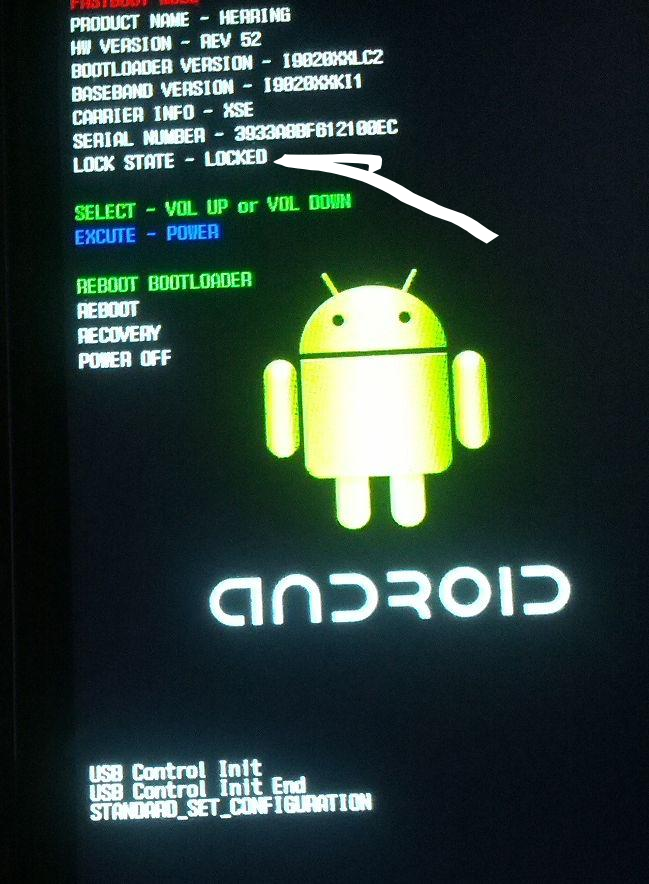
What I needed to be at was a different part of the phone innards called the FASTBOOT screen, black with a few options. But how to get there?

The instructions said:

If you are in the process of modifying your phone and it becomes “unresponsive” you should be able to recover it using fastboot with a simple procedure. The following illustrates resetting the Keon but other phones should have a similar process. You will also need to verify that you have fastboot installed.
First remove the USB cable and then remove the battery from the phone for 30 seconds. Then reinsert the battery and press the volume down button while holding the power button for a few seconds. Next reconnect the USB cable and run the following commands from a terminal window in the directory that contains the latest img files described in the first section of this post:
fastboot flash recovery recovery.img
fastboot flash boot boot.img
fastboot flash userdata userdata.img
fastboot flash system system.img
fastboot reboot
This process should recover your phone. If it doesn't seem to work, you may have to try it a second time.
I've read enough to know my ZTE may not have Fastboot, but I'll worry about that later. Peak has it but getting it is ... not exactly what they said. After removing the battery and putting it back in, no amout of pressing the Volume Down and Power did anything except keep bringing me back to the dreaded orange Recovery Screen.

I surfed the web and wore out my fingers on those hard buttons, and finally found one post somewhere that said to press Power AND the both the Volume Up and Volume Down buttons. Something is fiddly with those buttons, but pressing all three worked the first time and I was now in the Fastboot screen on my phone and was able to type the above commands in the command window. A few short moments later my phone rebooted and I was at version 1.2.

As a retired engineer I can appreciate that the Peak only has 4 buttons, and that two of them are attached at the hip. I've seen other phones that required some serious finger and hand stretching to get them to reboot the right way, but I would have preferred a pinhole in the back. For the Peak, I've seen the following ways to get to the magic Fastboot screen:

1. Power + Volume Down
2. Power + Volume Up
3. Power + Volume Up + Volume Down

And sometimes the order is important. #3 worked on the first try, #1 and #2 never worked for me. Just do this:

1. Take the battery out.
2. Unplug the USB cable  (essentially if you don't, the phone is still powered)
3. Wait 30 seconds.
4. Put the battery back in.
5. Press Power + Volume Up + Volume Down (all at once).
6. Plug in the USB cable.
7. Type these commands, one at a time, and let them do their thing:
fastboot flash recovery recovery.img
fastboot flash boot boot.img
fastboot flash userdata userdata.img
fastboot flash system system.img
fastboot reboot
 8. The phone will now reboot after the usual questions (time zone, etc.) you're done!

I couldn't take a screenshot of the Fastboot or Recovery screens, but I found some similar ones that will give you an idea of what they look like.

Recovery Screen

 Here is an image I found somewhere in G-land:


That one's for the ZTE but the Peak recovery screen is orange and has a few more options.

Flashboot Screen

Here is one for an Android device. But don't forget, under the skin, we're all androids!


Of course, mine didn't have a cute little Android or some of the extra device information, but it did have some similar stuff. The point is that you don't want to pick options from this screen, you just want to be on this screen with your phone. Once your phone displays this screen, you can run those mysterious fastboot commands from the command prompt on your PC. The instructions on how to do all this from a Mac or Linux are around, but in keeping with my lazy ways, I went with what was close at hand. I have now put Fedora on two spare netbooks and I'll try building my own images at some point. But for now, my Peak works and I'm back to game programming.

Next up, a series of posts on creating your own version of Flappy Bird, maybe some ASCII art games, a text adventure, a cool RPG, some platformers, oh, and maybe I'll pull these posts together and make a book!

Tuesday, January 7, 2014

A Bit More About Geeksphone Peak (Hardware Review)

A few more notes about the Geeksphone Peak that I received over the weekend.


I love it even more! When I was developing on the ZTE Open, every single time I would push an app I wrote to the ZTE, I would have to reboot the phone. This may be a bug for Firefox OS v1.0, but for Geeksphone Peak, at v1.1, I don't need to reboot. When the app makes its leisurely way down the USB cable from my PC to my phone, the icon just ... appears. No reboot, no problem. How cool is that?

I did have one problem that I want to share with you because if you use one Firefox OS phone and then switch to another, the Windows PC doesn't recognize your new phone. This may be a Windows problem (ha ha) but the issue turns out to be that Windows thinks you are still using a ZTE Open (in my case) and doesn't recognize your new Geeksphone Peak.

The fix is simple (if you're used to battling Windows). I have Windows 7 and what I had to do was go to the Control Panel, visit the Device Manager, and find the ZTE Open driver. Then uninstall the ZTE driver, reboot your PC, and then install a new driver from Geeksphone.

If you're lucky, the driver will install itself magically and you won't have to do anything. If you're not so lucky, you may have to download the driver from Geeksphone. The driver is here: http://downloads.geeksphone.com/drivers/usb_driver.zip. Download it, unzip it, and then reboot. Windows will try to install a driver, will say (maybe) it can't find one, and then you can direct Windows to find it in the folder you unzipped the Geeksphone driver at.

Everything should work fine after that, and it does for me.

And actually super-fine, because I can now load lots of my own apps onto my new phone. I still need to use the Simulator, but it works fine for me. I'll be eager to use the App Manager to load and view apps when I can get the Geeksphone Peak to update to version 1.2, which may happen soon!

So, just for your amusement, here's where the Geeksphone Peak driver is now located in Device Manager.


And, it now also gives me to USB drives to play with in File Manager:


Drive F: corresponds to the Internal Media Storage section of the phone. If you don't want to see this, you can disable it from the Media Storage section by deselecting the "Share using USB" button under the heading Internal Storage.

Drive G: corresponds to the SD Card Storage section of the phone. This is where you can put your music and photos.

If you select SD Card as the default media location, your screen shots will go there. One of the other cool things about the Geeksphone Peak is that it has 1GB of storage built in. The ZTE Open has (without an SD card), a whopping 6.4MB Device Storage, and that doesn't seem to be accessible to the PC. (Well, a lot of phones require some kind of SD card, but it is cool to see that you can live without one on the Geeksphone Peak.)

Without any reservation, I recommend the Geeksphone Peak for its speed, memory, and upgraded OS version. Travel over to Madrid and grab one while they are still available. I tried to order mine three times before but they were always out of stock. (But the ZTE Open was a bargain that got me started, so I'll recommend that if you only have $79 and you are patient.)

So now I can get back to work writing about games and game programming, this time armed with my ultra-powerful Geeksphone Peak. Thanks, Geeks!


Monday, January 6, 2014

Geeksphone Peak (Hardware Review)

This weekend I received my Geeksphone Peak, a step up from my good old ZTE Open, both Firefox OS phones. I'm very excited about this!


Mine is black on the front and white on the back. It's beautiful and fast. After shipping from Madrid, my new phone cost me $244 vs $79 for my ZTE Open.

From my point of view (Firefox OS Game Developer), the Peak is worth it! Here is the reason:


Room to move!

I now have 1.8GB for applications and 1BG for media storage. This is with no SD card installed. If I install an SD card,  the media storage bumps up to whatever my card has.

My ZTE Open only had 150MB of storage. That was fine for apps, but if I loaded a few of my own code programs (not zipped), I would run out of memory fast! Essentially I could only test one of my own apps at a time. Not good! So right now, I have about 12 times the app storage I had, so I can have lots of games and two or three of my own apps and still have room to move!

Memories are Made of This

I didn't understand what the memory meant, because everyone on Twitter told me I couldn't have 1.8GB of memory. Because I am new to phones, I didn't understand how memory works, but now I do, thanks to several helpful people.

When people talk about memory on a phone, they are talking about RAM, which is the fast memory that apps are stored in when they run, and is (probably shared) with the operating system. It turns out that even though I can't see it, my Peak has a RAM memory of 512MB. The ZTE Open only had 256MB. This memory isn't Application Storage or Media Storage. It's just memory, commonly known as RAM, and you can think of this as similar to the RAM on your computer (for example, the computer I'm typing this on says it has 9GB of RAM (64-bit Windows)) and is fairly speedy as a Windows computer.

What is so cool about my new Peak is that by having twice the RAM memory, it runs fast. I was prepared for my ZTE Open to run slow. I only paid $79 for it and I was happy that it ran at all. But it would take a minute for things to load, shut down, surf the web, etc., in its 256MB memory. But now my Peak, with 512MB of memory, is fast and isn't noticeably different from my Android Galaxy Note II or my iPhone 4.

I thought the Application Storage was RAM but it isn't. Both Application Storage and Media Storage are not RAM, they are Flash memory, similar to a USB memory stick. Not super slow, but who cares? The action is in the RAM, but being able to have 12 times the applications is really great for me. Woo, hoo!

Anything Else?

The Peak is larger. I haven't measured it, but it seems like it might be almost twice as large as the ZTE Open, though smaller than my Galaxy Note II (but larger than that tiny iPhone 4).

Oh, and an important difference. My Peak had an OS update when I turned it on the first time and right now I'm at Boot2Gecko 1.1.1.0hd-GP and I've been told that I can update this phone, unlike the ZTE Open which seemed perpetually stuck at 1.0.

This is a Peak, by the way, not the rumored Peak+.

And it was interesting to unpack it. It had a plug that looked like this

The two prongs were round and won't fit in my USA sockets, but I had a similar one that was USA standard and it had the same USB plug in the side that then I could plug in a USB cable that had a USB micro plug on the other end. 5 volts DC. It works!  No worrying about voltages. Everything is just 5 volts DC. What a wonderful world!

Everything else was standard. I plugged in a micro-SD card, plugged in a SIM card I had lying around, turned it on, answered a few standard questions, and ... Bob's your uncle, it all worked, right out of the box.


Don't Hate Me Because I'm Beautiful

I still love the ZTE Open for two reasons:

1. I will test any serious programs to make sure they run on the most-minimum platform. There are other folks out there with ZTE Opens and it is a perfect test platform.

2. Now that my Peak is my main computer, I'll risk updating the ZTE since I can afford to mess it up and take time to un-brick it later. I couldn't risk it when I wanted to keep producing this blog. I am very appreciative of the ZTE Open since it helped me to write 60+ blog posts and track down some interesting bugs with Firefox OS.

The ZTE is beautiful because it was only $79 and I could get it fast on eBay in the US. It's not like I can walk in to a phone store and buy it. The best thing I can say is that all the features work, I learned a lot about using a Firefox OS phone, it does phone calls, surfs the web, plays music, plays games! And lets me write programs in HTML5 and run them on it.

The Peak does all the same stuff, but does it faster and holds more apps. Other than that, it is the same wonderful Firefox OS, and I look forward to see what else Firefox OS will do.

I'll write more about that soon, because today (because of CES), there were announcements about more Firefox OS phones, a Firefox OS TV from Panasonic, Firefox OS tablets, and a cool Firefox OS pc that fits inside a book. It's called the APC Paper and it costs a whopping $100. Here's what it looks like from the top:


There's a PC in there and it runs Firefox OS. It's the size of a book, in case you wondered.

Here's what the back looks like:


It's got the usual USB, networking, HDMI, power, etc., I/O and reminds me a lot of the Raspberry Pi computer which is popular in the UK as a way to teach kids about computers. I have one of those too and they are cool, but not as cool as Firefox OS. Instead of Linux and Python, you can play with HTML5 inside your APC Paper!

I couldn't resist, and bought (again for $79) the innards of the APC Paper, which is called the APC Rock. (Okay, so when does the APC Scissors come out, and how far beyond that will be Lizard and Spock?)

Here's what the Rock looks like, with no case but standard I/O and the same power supply that phones use (5V).


As a retired engineer, this is a thing of beauty, especially since, unlike the Raspberry Pi, this board is designed to fit inside a standard Mini-ITX and MicroATX PC case. So I will soon have a Firefox OS PC and of course you'll be the first to hear about my adventures with this and maybe even a comparison with the Raspberry Pi.

I wouldn't necessarily recommend that you go out and buy this unless you are a hardware hacker or, on the other hand, if you've been working with the Raspberry Pi and are comfortable with those wires hanging out, give it a try. The Pi is $35, so the Rock will be approximately twice that. I'm not sure where APC is located, but there was some quick flash of VAT when I was ordering it (I didn't pay VAT, but I saw it somewhere in the background, so it might be located in the EU or who knows, these days. My guess would be that or Taiwan.)

By the way, in case you are curious, there's one other cool thing about these new APC devices besides running Firefox OS. APC was a project to create a $49 Android PC. They have one, but I have enough Androids, thank you. What is cool about this is that the design and chips for this are created by a company called VIA. You may never have heard of them, but I have, and I have a few VIA PCs lying around in a closet somewhere. You can find out more about Rock and Paper at http://apc.io/

You've heard of Intel, and you've probably heard of their rival, AMD. But there is a lesser-known Intel-compatible CPU manufacturer called VIA. And VIA owns APC. So this computer is not only a small PC, it is one that runs open source Firefox OS, open source Linux (underneath), and not-open-source but not Intel, CPU!

This is an incredible time to be working with Firefox OS. Stay tuned, but never iTuned!