Showing posts with label device orientation. Show all posts

Friday, June 6, 2014

The Firefox OS Tablet has Landed! (Hardware Review)

At least it has landed in my mailbox! Before you try to buy one, you can't. You have to fill out a form telling Mozilla what you will do with it. Find out all about it at https://wiki.mozilla.org/FirefoxOS/TCP.

If you want to see one, here's a video Michel Wilhelm made recently at http://www.youtube.com/watch?v=VvWRpC8Zdts with a nice tune about "What the Fox say!" And notice in the video that the tablet boots up in two seconds!


The tablet has several names. The box calls it the InFocus tablet. App Manager calls it Flatfish, my PC calls it SAGA. I like the name SAGA after the Japanese RPG, but I think Flatfish is catching on. I'll call it that.

Here's the specs, fresh from the TCP site:

Brand/Model: Foxconn InFocus New Tab F1
Processor: A31 (ARM Cortex A7) Quad-Core 1.2GHz w/ PowerVR SGX544MP2 GPU
RAM: 2GB
Storage: 16GB
Screen: 10.1" capacitive multi-touch @ 1280x800
Camera: Dual cameras, 2MP/5MP
Wireless: 802.11b/g/n, Bluetooth 2.1+EDR
Ports: Micro SD, Micro USB, Microphone, 3.5mm Earphone jack
Sensors: Light Sensor, G Sensor, Gyroscope Sensor
Other: Speaker 0.7W x 2 Stereo, GPS/AGPS & GLONASS
Battery: 7000 mAh
Dimensions: 266(L) x 170(W) x 9.7(H) mm
Weight: 580g 

It's a big tablet. I'm used to 7" tablets which will fit in my hand in portrait mode and 8" tablets which won't, but this is a big 10" tablet and you have to hold it in your lap. Unfortunately because people didn't know it was coming, many apps force you to tip the tablet sideways to use the app. Oh, well, they can read all about Screen Orientation at http://firefoxosgaming.blogspot.com/2013/11/screen-orientation-and-moz-prefixes.html which also contains a little app you can use to see how it work.

As promised, I'll get started on creating a series on responsive design that will compare the tablet to the three Firefox OS phones I have (all different sizes) and probably put it all into a book! But today, I'll just talk about the tablet and setting it up.

After charging it up with the included charger, I plugged it into my PC running Windows 7 and the drivers were very cooperative. Here's a screenshot of what the completed drivers from Windows Update look like:


And as soon as the drivers are loaded, this helpful window pops up, asking me what I want to do with this new drive.


Windows thinks this is called the SAGA G1. My very first Android phone was called the G1!

Well, this isn't a phone, this is a tablet! And here's what the memory looks like from the PCs point of view:


Drive E: is my DVD and Drive H: is my SD card used as a ReadyBoost cache (very handy for laptops). But we're interested in Drive I: which is the internal memory for apps on the device. Disk J: is the micro-SD card I stuck in the tablet (8GB which becomes 7.40GB). Lots of room for apps!

All is good, wireless worked, so I downloaded some apps from the store and some music from my PC. Next to download some of my own apps using the App Manager.

Here's what the App Manager sees:
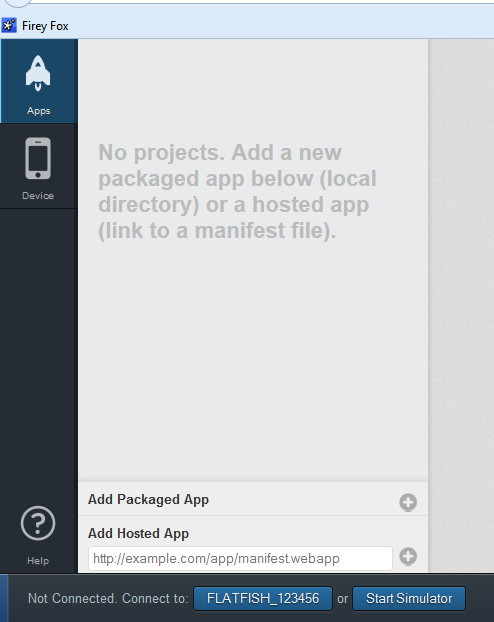

You'll notice that App Manager calls the tablet the FLATFISH_123456 but we'll use the nickname Flatfish!

I had to make one change, however, before I could load one of my own apps. When using a FxOS phone, you have to check the box allowing remote debugging. With the tablet, there isn't a check box, there is a drop-down menu and it was set to ADB. That didn't work for me. I clicked on the box and found that ADB and Devtools needed to be the option.


Then everything worked perfectly.

So I uploaded my favorite app, the revised "How Big Am I" app explained in http://firefoxosgaming.blogspot.com/2014/04/long-lost-cousin-to-responsive-design.html. I'm about to revise it again using the Viewport API, but I thought I'd see if it worked on the tablet. It does!


Here you can see that the tablet has an outer width and height of 1280x800 pixels and an inner width and height (from the notifications bar taking away 20 pixels) of 1280x780 pixels. That's HUGE!

By the way, yet another cool thing about the App Manager is that it shows you the size of the screenshot when you take it:


App Manager just is so cool!

So here's a few screen shots. First is the Home screen, showing the one app I downloaded.


The icon says FoxBall but the app is really Size Me which is version 2 of How Big Am I? The icons below (done by a better icon maker than me) are Internet, E-Mail, Gallery, Music, Contacts, and Calendar.

The second screen looks like this:


That's it. Above are Settings, Camera, Clock, Video, and the fabulous Marketplace. Below you already know. No more for now but if you add more apps, more screens will become available.

If you want to uninstall an app, you must do it through the settings.


The old way, a long press on an app until it shows a little X in the upper-left corner, is gone (too much like iOS?).

Also, if you want to see what apps are running and kill one (but not uninstall it), swipe DOWN from the top to expose the apps that are running. Kill them by pressing on the X in the upper-left corner.

To get back to the Home screen, just swipe UP! So far, most things seem the same as the phone.

I also found one setting that stopped a problem I was having. After I had been playing with the tablet a few hours, the screen started flickering and changing colors. I thought maybe the tablet was heating up and going bad and I had visions of returning it and being very sad.

But it turned out that there is a setting in the Developer section that said something about repainting. Don't select that unless you know why you want it. I unselected it and the colors went back to normal. I unselected everything except the ADB & Devtools for remote debugging and everything seems fine.

Problems

I noticed a few problems with the new tablet. The first is that several apps don't load quite right. I don't know what this is about but here's what happens. I go to load something and instead of an icon, I get a screen like this:


This was for an app called PDF Viewer, but I saw several others. It's not that big a deal because you can just carefully click on index.html and the real app will come up. But odd. Not every app did this. Something to investigate further. 

By the way, the PDF Viewer app really ran slow on the tablet, but runs fast on a phone. This probably is because there are less pixels to crunch. It took like 3 or 4 seconds to fill a page with a double-column PDF. This may be a problem for apps that have to crunch more pixels!

My other noticeable problem is that the Device Orientation does not seem to work. There is a cool app called Orbland that simulates rolling a steel ball around a wooden maze. It works on the original ZTE Open and the Geeksphone Peak, but does not work on ZTE Open C, and now does not work on the Flatfish!

I had written an app that shows the code for Device Orientation at http://firefoxosgaming.blogspot.com/2013/12/device-orientation-game-programming.html
and it works on the ZTE Open and the Geeksphone Peak (both running at version 1.2) but does not work on the ZTE Open C (version 1.3) or the Flatfish (version 1.4). The hardware has a gyroscope and the Device Orientation API should work but doesn't. I need to file a bug on this so that people can play Orbland! Seriously, device orientation is important for phones and I'll figure out what the story is. Especially because I'm working on a space shooter that uses Device Orientation to steer. By the way, my blog post on Device Orientation was the most popular post on my blog, but has now been pushed off the top of the pile by my post on the ZTE Open C.

Also, in a similar problem, the Vibration API doesn't work for the ZTE Open C or the Flatfish, but there was some discussion on B2G about how vibration isn't support in the actual devices (even though it was on the ZTE Open and the Geeksphone Peak. I wonder why those aren't supported. I like vibration for tapping on keys and of course for games it really helps explosions!

I think that covers the first round of this fabulous new tablet. It seems very well built and I'm happy to put it through its paces and write lots of posts on responsive design because now I have a phone (three actually) and a tablet. Clearly, what works on a phone won't work on a tablet. And by the way, I'm ready to say that if you write an app, have your phone version be portrait, but have your tablet version landscape. Because of the way the plug works, it's not easy to view something in portrait on the tablet.

So, stay tuned, but not iTuned or iPadded!

Thursday, January 2, 2014

Space Fox (Game Review)

Anything with Fox in the name is worth investigating, and Space Fox is no exception. As you may have gathered from my post on Heroine Dusk, I'm an RPG game fan from way back. But I have a new interest I've been pursuing the last six months, which is space shooters. And Space Fox is definitely a space shooter!


This is a simple game, in that it doesn't have a lot of options and doesn't have music. Your white ship with orange fins is shown at the bottom left. The meteorites are orange. So is a firefox!

Here's the opening screen. You'll see it every time you crash.


The score is based on the kilometers you travel. The highest I've gotten so far is 43, but I'm sure you can do better.

There are instructions on the Marketplace page:
Discover the dark side of the space and kill all the space invaders.
- Move the ship rotating the device with the accelerometer.
- Tap the screen to shoot.
- Portrait mode only. 
The controls on this game are unusual, but very interesting for phones. I've played half-a-dozen space shooter games on the Android, but the controls were awkward and difficult to master. Most of them have little buttons that you have to press on the screen. Space Fox doesn't have any buttons. It has two basic ideas:
  1. Tilt the phone down on the left or right edge. The ship will slide in that direction. You do this to avoid the meteors. This game is in portrait mode, so it's easy to tilt side to side and learn a smooth rocking motion.
  2. Tap anywhere on the screen to shoot. If you can't avoid the meteors, you can shoot them.
That's it! The developer, Luis Jesus Maldonado Varela, probably will be adding things in the next version, but Space Fox is an interesting way to do a space shooter with controls that work for a phone. I covered the concept of tilting in my article on  Device Orientation, and the technology is fairly easy to use.

The game has a few extras. It does have sound effects for the explosions and shooting, and every once in a while if you destroy an asteroid you get something good. But the main point is that this is a different approach to space shooters, one that tries to use the new technologies of the phone!

I'll take off one point for no music and the lack of change (it's just asteroids with no extra scenery), but because this is original and has the name Fox, I give it a 4. The directions are on the Marketplace page at https://marketplace.firefox.com/app/space-fox-1.

Cost: Free
Genre: Arcade
Score: 4 (out of 5)
Tested on: ZTE Open (Firefox OS)
Get it at: Firefox Marketplace

Sunday, December 29, 2013

Device Orientation (Game Programming)

In my last post, I reviewed a charming classic game called Orbland. It looked like this:


And my review of Orbland is at http://firefoxosgaming.blogspot.com/2013/12/orbland-labyrinth-game-review.html  Orbland simulated a rolling ball in a maze. This isn't a game you can play on a PC! You have to tilt the phone to roll the ball and if you try to run this type of game on a PC browser, it won't work. It also won't work on Firefox for Android (yet). You need a phone to do program this kind of interaction, but how?

And speaking of Firefox for Android, if you have an Android, be sure to get Firefox for Android, because a lot of the game I have reviewed here will run on Firefox for Android, so who needs Google Play for games!

Not only is it fun to play games (on Firefox OS), but it is fun to make games. Today's post will introduce the bizarre world of Device Orientation, that is, twisting and turning your phone. And by the way, don't confuse this with Screen Orientation, which has to do with playing games in Portrait or Landscape. If you want to see that article, go here: http://firefoxosgaming.blogspot.com/2013/11/screen-orientation-and-moz-prefixes.html.

So how does Device Orientation work? It uses a specific event, deviceorientation, to determine changes in orientation. Are you turning the phone from top to bottom? side to side? rotating around like a top? If this sounds confusing, check out this page on Mozilla Developer Network: https://developer.mozilla.org/en-US/docs/Web/Guide/Event/Orientation_and_motion_data_explained, which explains the three ways you can rotate your phone, and this page, which explains a bit about the API: https://developer.mozilla.org/en-US/docs/WebAPI/Detecting_device_orientation.

Here's the code I use to do some simple ball-rolling. Load it into your phone and have a good time. Not as skillful as Orbland, but it does have a ball rolling around.

<!DOCTYPE HTML>
<html>
 
  <head>
    <meta charset="UTF-8">
    <title>
      Device Orientation
    </title>
 
    <style>
        
      #ball
      {
        width: 20px;
        height: 20px;
        position: absolute;
        top: 230px;
        left: 150px;
        background-image: url(ball.png);
      }
      
    </style>
   
       <div id="ball"></div>

    <script type="text/javascript">

        // Load event listener
      window.addEventListener("load", getLoaded, false);
     
      // deviceorientation event listener
      window.addEventListener("deviceorientation",
        handleOrientation, false);

        // Get ball information.
        var myBall = document.querySelector("#ball");
     
      // Function called on page load.
      function getLoaded() { 

            // Output to console.
        console.log("The page is loaded.");
      }
     
      function handleOrientation(evt) {
     
        // Beta is top/bottom rotation.
        myBeta = ~~evt.beta;
       
        // Gamma is left/right rotation.
        myGamma = ~~evt.gamma;
     
        // Test to see if tilt is in range.
        if ((myBeta < 29) && (myBeta > -29)
               && (myGamma < 29) && (myGamma > -29)) {
     
          // Calculate ball position for beta.
          myBString = 230 - (myBeta * 7) + "px";
         
          // Display ball position for beta.
          tilt.textContent = "beta " + myBString;
         
          // Move ball to new beta position.
          myBall.style.top = myBString;
       
          // Calculate ball position for gamma.
          myGString = 160 - (myGamma * 5) + "px";
         
          // Display ball position for gamma.
          tilt.textContent = tilt.textContent +
            " gamma " + myGString;
           
          // Move ball to new gamma position. 
          myBall.style.left = myGString;             
        }     
      }
     
    </script>
  </head>
 
  <body>
  <p id="tilt">Tilt!</p>
  </body>

</html>


Here's what the screen looks like if your phone is held flat (tangent to the earth's surface).


At the top I've printed the beta and gamma positions of the ball. Since the screen is 320 x 460 pixels, the beta will be the vertical position (216 pixels from the top edge, roughly half of the screen height) and the gamma will be the horizontal (160 pixels from the left edge, roughly half of the screen width). For more about width and height, see my post at http://firefoxosgaming.blogspot.com/2013/10/how-big-am-i-game-programming.html.

What is beta and gamma? As the MDN article https://developer.mozilla.org/en-US/docs/Web/Guide/Events/Orientation_and_motion_data_explained explains, beta is the rotation from top to bottom, and gamma is the rotation from left to right. Or if you've ever ridden in a small boat, beta is rocking the boat from bow to stern, and gamma is rocking from port to starboard. There's a third Greek letter, alpha, that is like turning the boat around in circles (but because we don't want to get you seasick, alpha won't be covered here). Look at the excellent pictures on MDN for further explanation.

Essentially the code follows the same format as the CSS bouncing ball code example I wrote at http://firefoxosgaming.blogspot.com/2013/10/bouncing-ball-in-css-game-programming.html. You have a picture of a ball, you define it in CSS, and move it around. The movement is defined by changes in the deviceorientation event.

When the deviceorientation event is triggered, a check is made to see if the changes in device orientation are between -29 and +29. Device orientation runs from -180 to 180 (making a complete 360 degree circle) for beta and gamma, but it you don't want to know if the phone is tilting more than 30 degrees in any direction.

Here's my equation:

        // Test to see if tilt is in range.
        if ((myBeta < 29) && (myBeta > -29)
               && (myGamma < 29) && (myGamma > -29)) {


This uses the && to make sure that all four conditions are met. This evaluates to true only if all four conditions mean that the screen isn't tilting too much.

Also, before this equation, I did conversions that you may not have seen before:

        // Beta is top/bottom rotation.
        myBeta = ~~evt.beta;
       
        // Gamma is left/right rotation.
        myGamma = ~~evt.gamma;


These take the original value of the beta and gamma values and convert them from floating point to integer (whole number) values. There are JavaScript functions that will remove all the numbers to the right of the decimal point, but if you don't know whether the number is positive or negative, you can't use floor or ceil. But if you use a double ~~ (tilde), you can convert floaters to the correct values (-3.14 = -3, +3.14 = 3). Essentially ~ (tilde) is a bitwise NOT operator and it changes a number to a 32-bit integer and flips all the bits. And a second ~ (tilde) flips all the bits back, but now it's just an integer. This is cool because JavaScript doesn't have data typing for different kinds of numbers, but you can fool it with this obscure bit of magic. You can read more about it here: http://www.frontendjunkie.com/2012/06/deep-dive-into-javascript-not-bitwise.html

So here is how it works in practice:

Tilt the phone so the top is pointing down and read the beta and gamma values.


The beta is smaller but the gamma is still pretty much the same. Here's what happens if you tilt it so the bottom is tilted down.


And likewise, if you tilt it so the left side is down, you get:


And finally, if you tilt it toward the right side, you get:


Pretty cool, huh? The ball goes where you want, no tapping, no touching. A phone-only way of controlling your game. Simple in my sample, but cool in Orbland. If anyone sees other games that use this technique, let me know.

Friday, October 25, 2013

Sketchbook Squad (Game Review)

Can you say "Doodle Jump?" Can you say "Scribblenauts?" I wondered if Sketchbook Squad might have something to do with sketching.

Well, it doesn't. You just jump ever higher and grab sketchbooks on your way off. But maybe I just expect too much.

So, like Doodle Jump, you just start at the bottom and jump until you ... die!

Here's the splash screen:


So far, maybe it is still about sketching. But no Help button. Maybe a tutorial is coming?

When you press Play! you get:


Yup, it's Doodle Jump! How does this play? Well, you are always moving and bouncing up and down. If you hit a platform, you bounce back up again. Your goal is to move the little guy so that he will jump up to another platform.

But, the touch seems not so responsive. Most of the time I get a few platforms up and then fall off to my death. If I get a sketchpad (little red notebook),  It is way too easy to die!

Here's my death:


Because the touch is so unresponsive, it is too easy to die. So I can't even tell if there is anything more or how high the levels go. I watched a video of an Android version and it looks like you can get things like sketchbooks that give you a rocket boost and maybe more.

I haven't had any other touch problems with other games on the ZTE Open, so I'll be curious if others have been able to get this to work. Or maybe I'm just clumsy?

This game is on Android and iOS and you can see a video of it here:


STOP!!!

I played around a bit more with this and found that it isn't touch based at all. Maybe that's a problem of not having a Help screen.  This is actually a very cool game but when I thought I was touching, I was actually tilting the screen. This is a motion-sensor game and it works perfectly.

Tilt left and the guy tilts left. So who needs touch?

It is still pretty easy to die, but the controls work perfectly, the art is fine, and the game has a good play factor. So the lesson here is keep playing and maybe you'll figure it out. The game is good, Orange Pixel, but I really would have liked to see a tutorial or directions so I didn't guess wrong and think it was touch based.

But, this game introduced me to the Firefox OS Accelerometer and I'd like to play with it. There's some documentation and sample at https://developer.mozilla.org/en-US/docs/WebAPI/Detecting_device_orientation and it looks pretty cool. And Sketchbook Squad opened the door to me, so I'll forgive them for their lack of a Help screen and give them a 5. So who needs a finger?

Cost: Free
Genre: Puzzle
Score: 5 (out of 5)
Tested on: ZTE Open (Firefox OS)
Get it at: Firefox Marketplace